
Objets 3D dans Splat Labs Cloud vous permet d'uploader des fichiers GLB (jusqu'à 50 Mo chacun), de les placer dans votre scène Gaussian Splat et de les ajuster avec translation, rotation et échelle — puis d'enregistrer pour qu'ils se chargent avec le projet. Cela débloque de vrais accessoires : meubles, déco, luminaires ou tout ce que vous avez déjà en GLB.
Ce guide présente un workflow avancé mais pratique : utilisez le générateur d'images IA intégré pour produire une version mise en scène de votre espace, isolez un objet avec le Segment Anything Model (SAM) de Meta et des outils de génération 3D, exportez un GLB, et réimportez-le dans Splat Labs. Vous pouvez sauter entièrement l'étape IA si vous avez déjà un GLB provenant de n'importe quel pipeline — Blender, bibliothèques d'assets ou autres outils de 3D générative — tant que le fichier respecte la limite de taille.
Les étapes Meta se déroulent dans les propres outils de Meta (tiers) ; Splat Labs héberge votre splat et vos objets placés. Pour en savoir plus sur les transformations visuelles par IA d'un scan, consultez AI 3D Redesign : Transformez n'importe quel espace avec un prompt texte. Pour les bases d'orientation de splat, voir Comment uploader, translater, pivoter, mettre à l'échelle et ajouter un plan de sol.
Regardez le tutoriel complet
De bout en bout : staging IA dans Splat Labs → export image → Meta SAM / maillage 3D → GLB → panneau Objets 3D → placer, mettre à l'échelle, enregistrer et explorer.
Ce dont vous aurez besoin
- Un compte Splat Labs Cloud et un projet avec un Gaussian Splat déjà chargé (par exemple une visite immobilière ou tout espace capturé).
- Pour le segment de staging IA optionnel : accès au générateur d'images IA (icône étincelle) dans le visualiseur — même famille de fonctionnalités que nos workflows de redesign de scène par IA.
- Pour le segment maillage : un compte Meta et leur expérience Segment Anything avec export d'objet 3D / GLB (les noms de l'interface changent avec le temps ; cherchez le masquage plus Générer en 3D ou équivalent).
- Un fichier GLB de moins de 50 Mo à importer (que vous l'ayez généré avec Meta ou obtenu ailleurs).
Étape 1 : Ouvrir le générateur d'images IA
Dans la barre d'outils en bas à gauche du visualiseur, ouvrez le menu et choisissez l'icône étincelle — le générateur d'images IA. Vous verrez un prompt du type Décrivez comment vous aimeriez mettre en scène cet espace, avec un champ pour ajouter meubles, éclairage et ambiance.
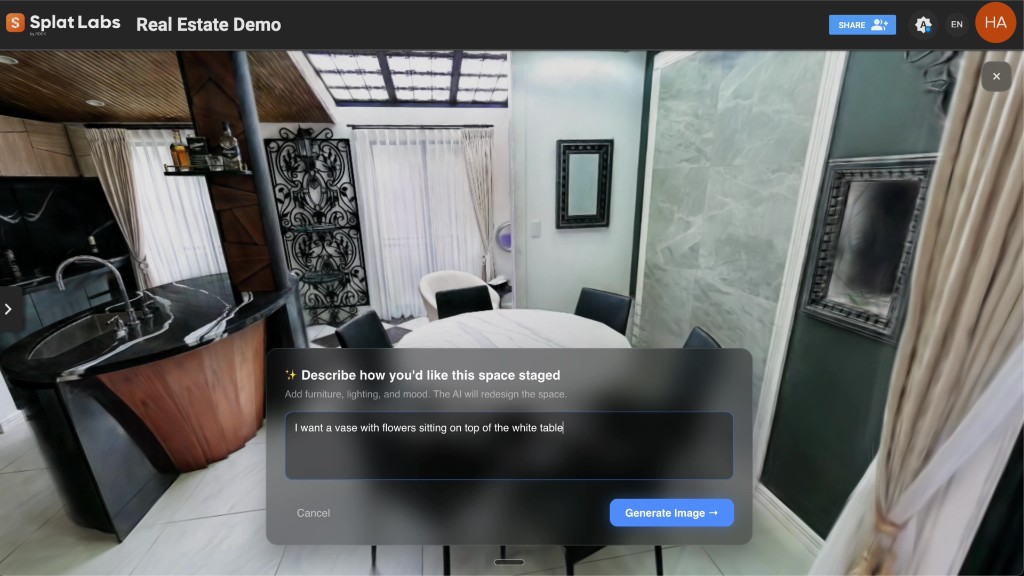 Exemple de prompt : ajouter un vase de fleurs sur la table blanche — en phase avec les workflows de staging virtuel.
Étape 2 : Générer et comparer (optionnel mais montré ici)
Saisissez un prompt clair. Dans la démo, nous avons utilisé : Je veux un vase avec des fleurs posé sur la table blanche. Lancez la génération, puis utilisez la vue avant / après ou de comparaison si disponible pour confirmer que seule la zone souhaitée a changé.
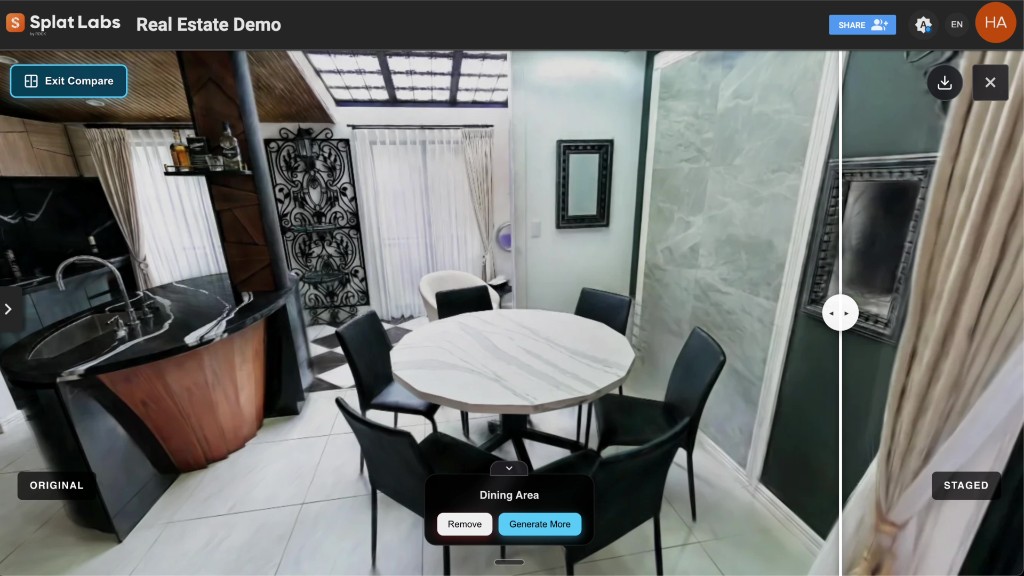 Côté original de la comparaison — table vide, même géométrie de la pièce.
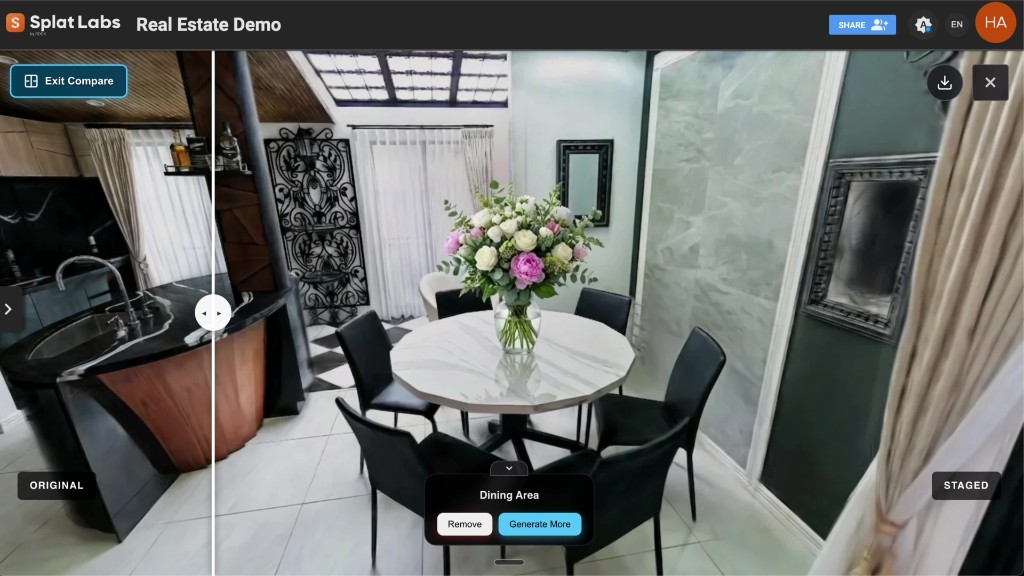 Côté mis en scène — l'image générée par IA s'intègre à la scène et ajoute l'objet que vous avez décrit.
Enregistrez l'image mise en scène sur votre ordinateur. Vous utiliserez cette image comme entrée pour la segmentation et la 3D dans l'outil de Meta.
Étape 3 : Segmenter l'objet et exporter le GLB dans le workflow 3D Meta SAM
Ouvrez l'expérience Segment Anything / SAM de Meta qui prend en charge l'export de maillage 3D (souvent présenté comme la sélection de régions sur l'image puis Générer en 3D). Uploadez l'image mise en scène, placez des points positifs sur l'objet souhaité (par exemple le vase et les fleurs), affinez le masque en ajoutant/retirant si nécessaire, puis générez le maillage et téléchargez en GLB.
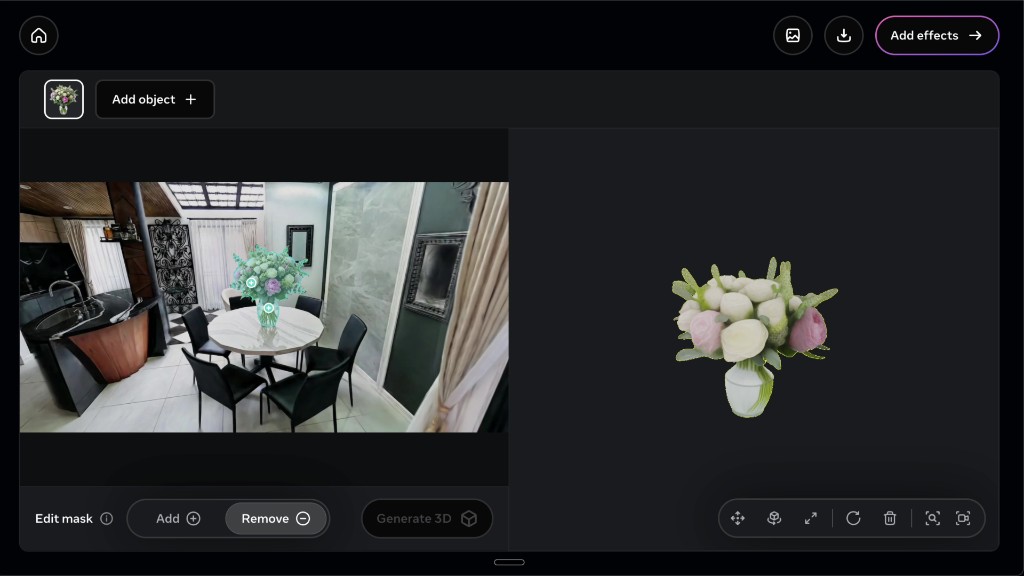 Masquage style Segment Anything plus un aperçu 3D — exportez le résultat en GLB pour Splat Labs.
Cette étape n'est pas hébergée par Splat Labs ; c'est un pont entre le staging génératif 2D et un asset 3D portable.
Étape 4 : Importer le GLB dans Splat Labs (Objets 3D)
De retour dans votre projet Splat Labs, ouvrez la barre d'outils droite et sélectionnez Objets 3D. Utilisez Uploader pour ajouter le GLB que vous avez téléchargé. Le fichier apparaît dans votre bibliothèque ; placez-le dans la scène pour qu'il devienne un objet placé que vous pouvez sélectionner.
Étape 5 : Translater, pivoter et mettre à l'échelle pour correspondre à la pièce
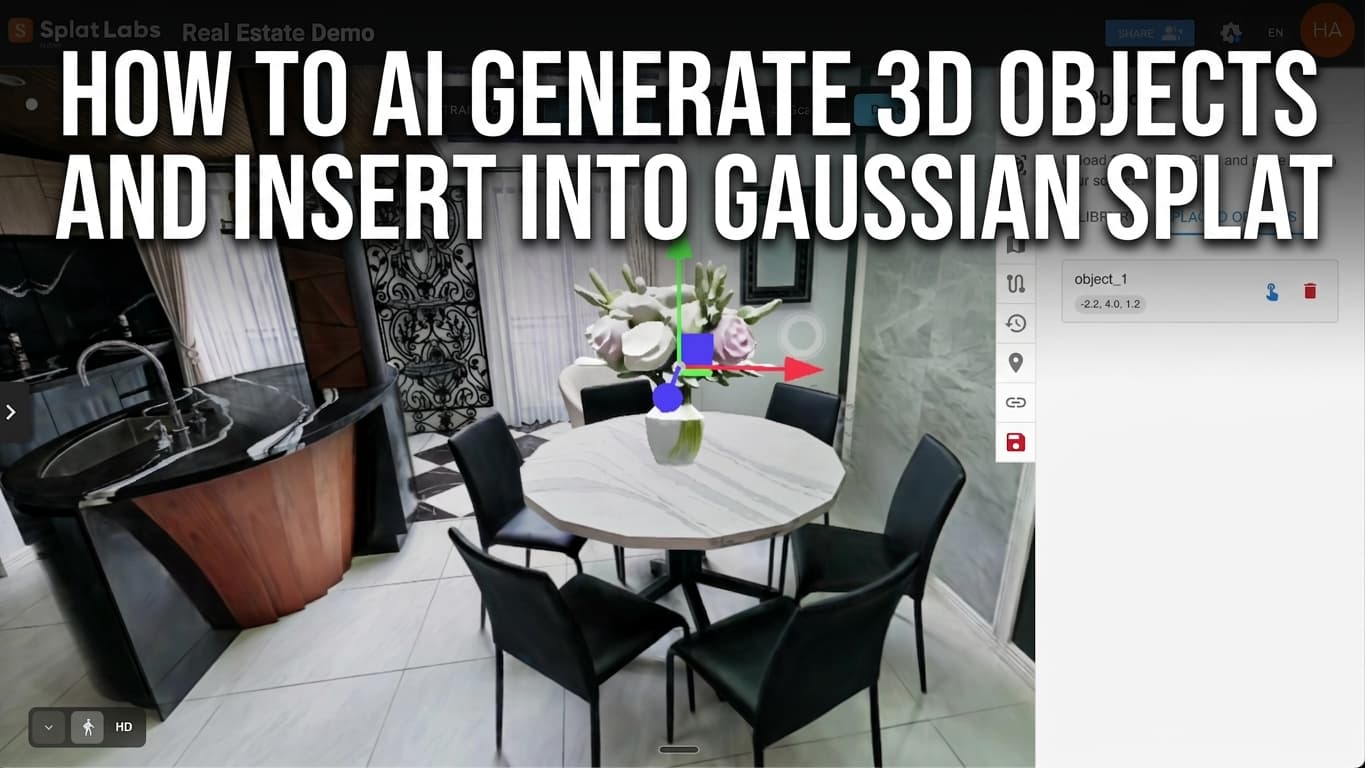
Avec l'objet sélectionné, utilisez Transformer : Translation, Rotation et Échelle pour que l'asset soit posé sur la table (ou toute surface) et corresponde à l'échelle réelle. La démo utilise les flèches d'axes pour un placement précis — même modèle mental que la translation / rotation / échelle de splat dans notre tutoriel plan de sol, appliqué au maillage importé.
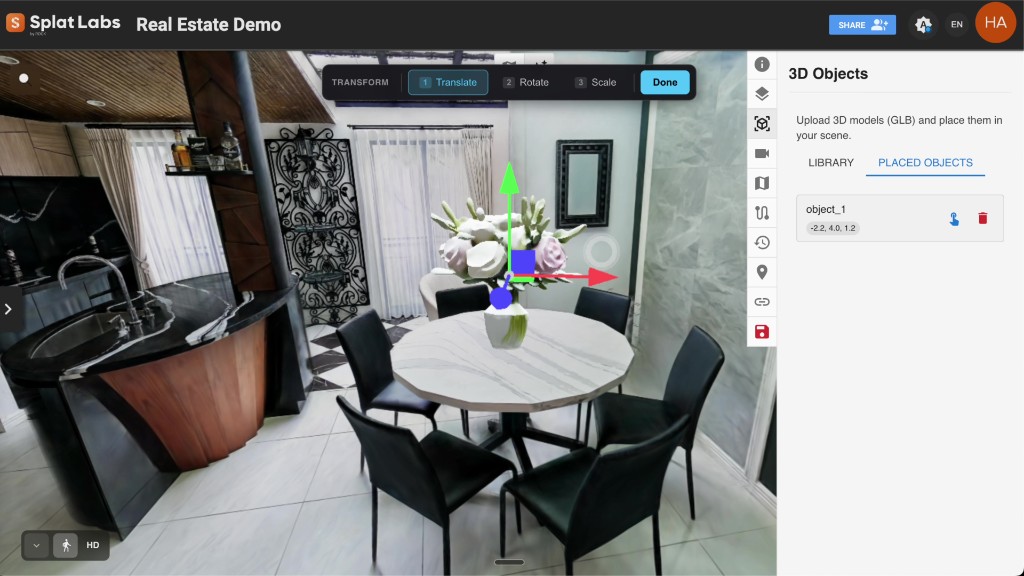 Objets 3D → GLB placé → Transformer jusqu'à ce que l'accessoire s'aligne avec la géométrie de votre Gaussian Splat.
Cliquez sur Enregistrer dans la barre d'outils pour que l'objet persiste avec le projet.
Étape 6 : Parcourir la scène
Déplacez-vous normalement dans l'espace. Le GLB est de la vraie géométrie 3D dans le visualiseur — vous pouvez orbiter, marcher et le voir sous plusieurs angles, pas seulement une superposition plate. Tables, chaises, portes ou déco fonctionnent tous de la même manière tant qu'il s'agit de GLB valides sous la limite de taille.
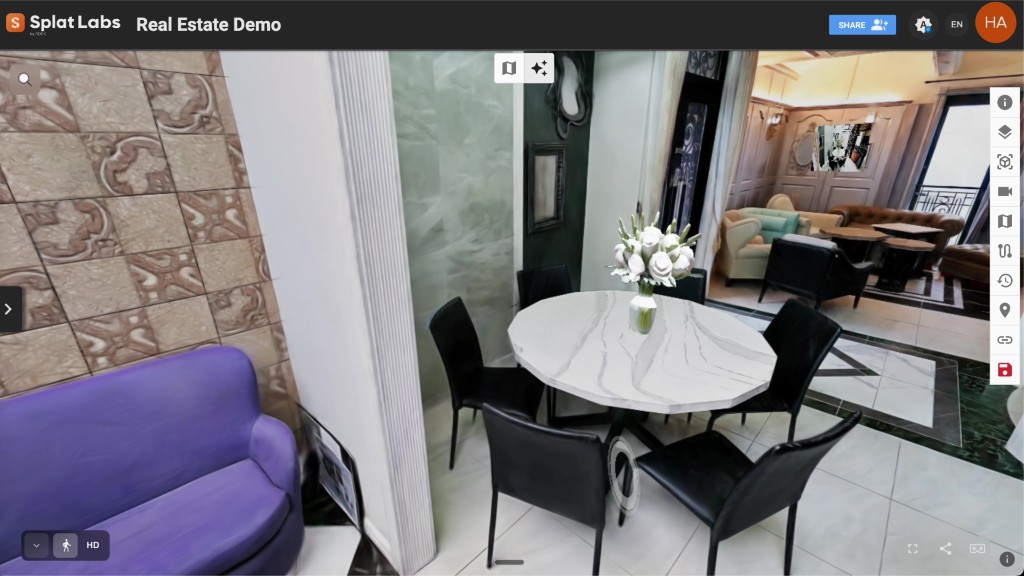 Scène terminée : IA générative pour l'image de référence, extraction 3D style SAM, Splat Labs pour le placement et le partage.
Conseils
- Vous n'êtes pas obligé d'utiliser le staging IA. Si vous avez déjà un GLB, allez directement dans Objets 3D → uploader → transformer → enregistrer.
- Soyez précis dans vos prompts sur l'emplacement et le type d'objet pour que l'image exportée corresponde à la géométrie de votre splat.
- La qualité du maillage dépend de l'étape 3D externe ; affinez la segmentation et la régénération dans l'interface de Meta avant de ré-importer.
- Partagez le projet depuis Splat Labs quand les parties prenantes doivent examiner la scène meublée — dans le navigateur, sans installation d'application.
Prochaines étapes
- Explorez la tarification pour les équipes ayant besoin de plus de projets, de collaboration et de fonctionnalités IA.
- Lisez AI 3D Redesign : Transformez n'importe quel espace avec un prompt texte pour en savoir plus sur l'IA générative dans les Gaussian Splats.
- Parcourez les idées de visites virtuelles et immobilier pour les workflows d'annonces.
Des questions sur le déploiement en entreprise ou la capture matérielle ? Contactez-nous — nous serons ravis de vous aider.