
Warum einen 3D-Gaussian-Splat einbetten?
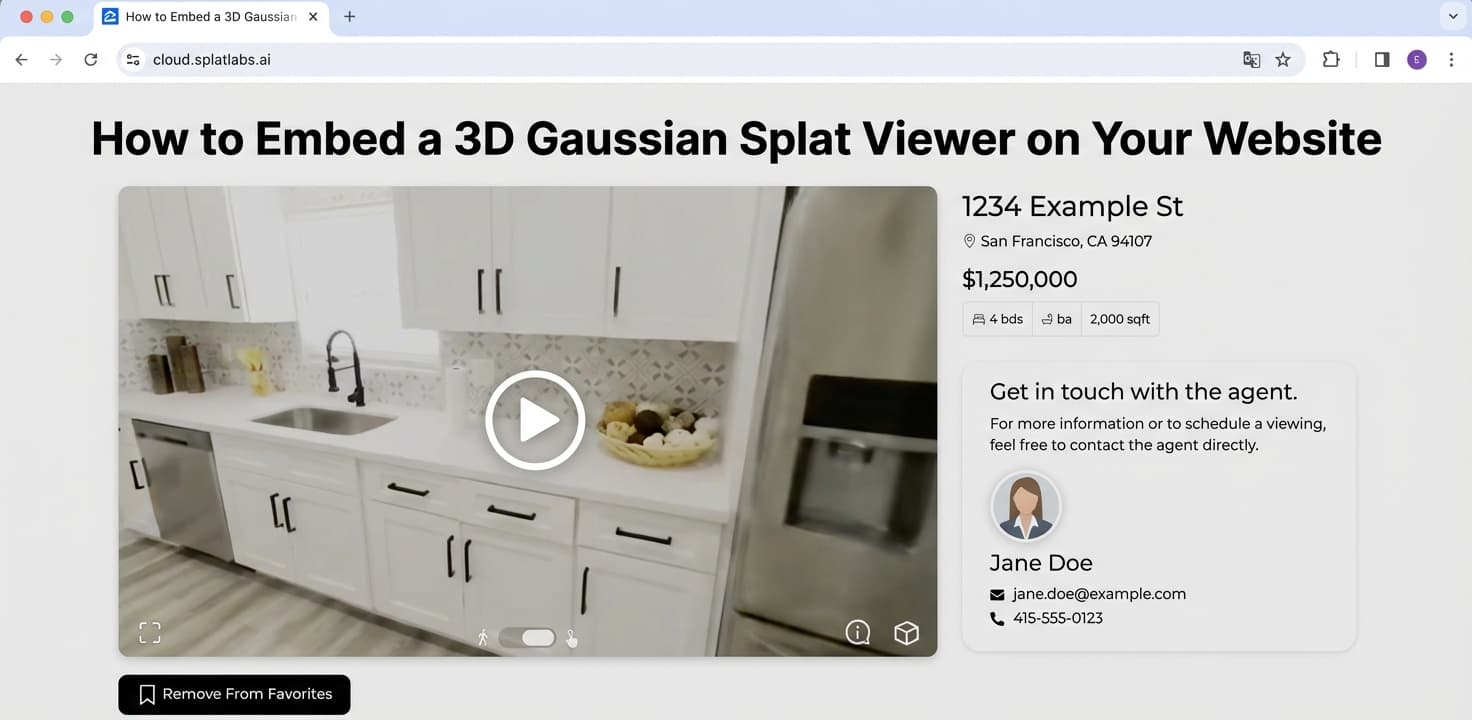
Statische Bilder und sogar 360-Grad-Fotos können nur begrenzt zeigen. Ein Gaussian-Splat-Embed gibt Ihren Website-Besuchern die Möglichkeit, durch eine vollständig fotorealistische 3D-Szene zu gehen — zu drehen, zu zoomen und aus jedem Winkel zu erkunden — alles ohne eine einzige App zu installieren.
Ob Sie ein Immobilienmakler sind, der ein Angebot präsentiert, ein Bauunternehmen, das den Baufortschritt mit Stakeholdern teilt, oder ein kreatives Studio, das ein interaktives Portfolio erstellt — das Einbetten eines Gaussian-Splat-Viewers verwandelt passive Betrachter in aktive Erkunder.
Mit Splat Labs Cloud ist das Einbetten so einfach wie das Kopieren einer einzigen HTML-Zeile.
Wie es funktioniert
Jedes Projekt, das Sie auf Splat Labs Cloud hochladen, erhält eine teilbare Viewer-URL. Diese URL kann direkt in einem Browser geöffnet oder in ein HTML-<iframe>-Tag eingewickelt werden, um sie in jede Webseite einzubetten — Ihre eigene Website, ein Blog, ein Zillow-Angebot, eine MLS-Seite, ein Notion-Dokument oder ein CMS wie WordPress, Squarespace oder Webflow.
Hier ist der Prozess:
Schritt 1: Den Teilen-Dialog öffnen
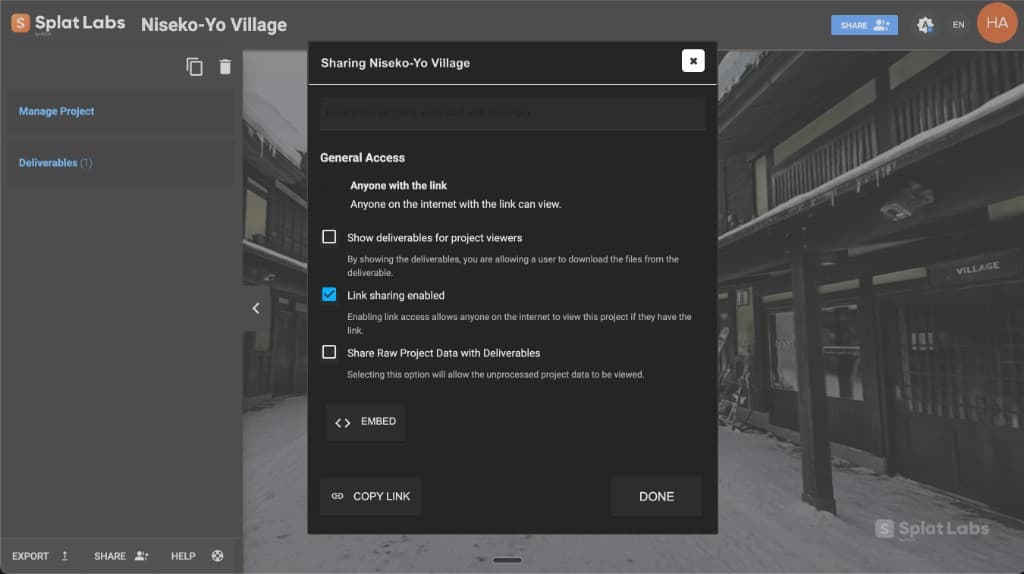
Nachdem Sie Ihren Gaussian Splat auf Splat Labs Cloud hochgeladen und verarbeitet haben, öffnen Sie Ihr Projekt. Auf der linken Seite des Viewers sehen Sie eine Seitenleiste. Am unteren Ende dieser Seitenleiste klicken Sie auf die Schaltfläche Teilen.
Damit öffnet sich der Teilen-Dialog, in dem Sie Zugriffseinstellungen kontrollieren und Ihren Einbettungscode erhalten können.
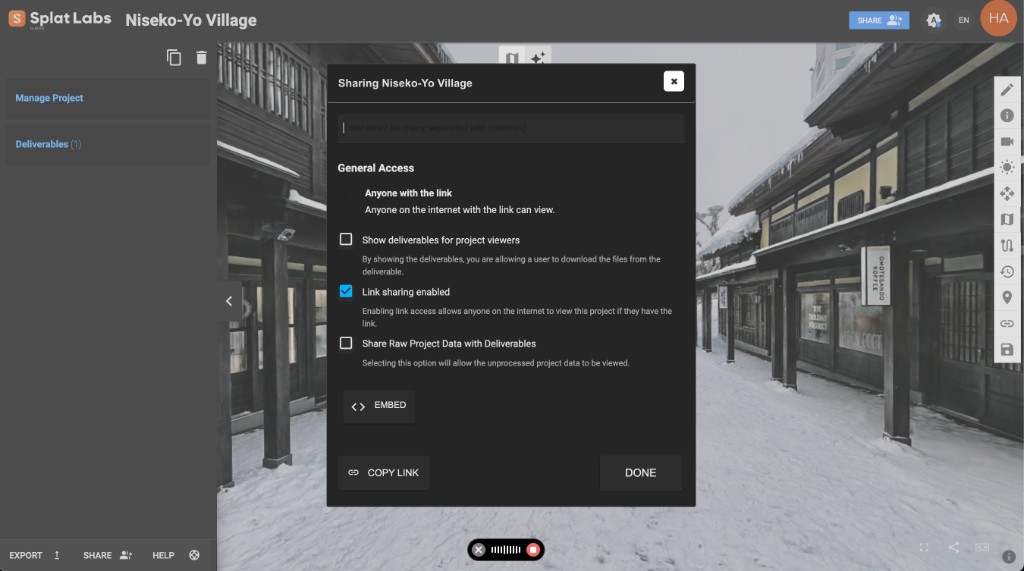 Der Splat Labs Teilen-Dialog. Stellen Sie sicher, dass "Link-Teilen aktiviert" angekreuzt ist, dann klicken Sie auf die EINBETTEN-Schaltfläche, um Ihren iframe-Code zu erhalten.
Schritt 2: Ihre Einbettungs-URL oder Ihren Code erhalten
Im Teilen-Dialog:
- Stellen Sie sicher, dass "Link-Teilen aktiviert" angekreuzt ist — das ermöglicht jedem mit dem Link, Ihr Projekt anzusehen.
- Klicken Sie auf die EINBETTEN-Schaltfläche, um den Einbettungsbereich zu erweitern.
Jetzt sehen Sie zwei Felder:
- Einbettungs-URL — Die Viewer-URL, die Sie direkt verwenden oder in Plattformen wie Zillow, Notion oder MLS einfügen können.
- Einbettungscode — Ein vorgefertigtes HTML-
<iframe>-Snippet, das Sie direkt kopieren und in Ihre Website einfügen können.
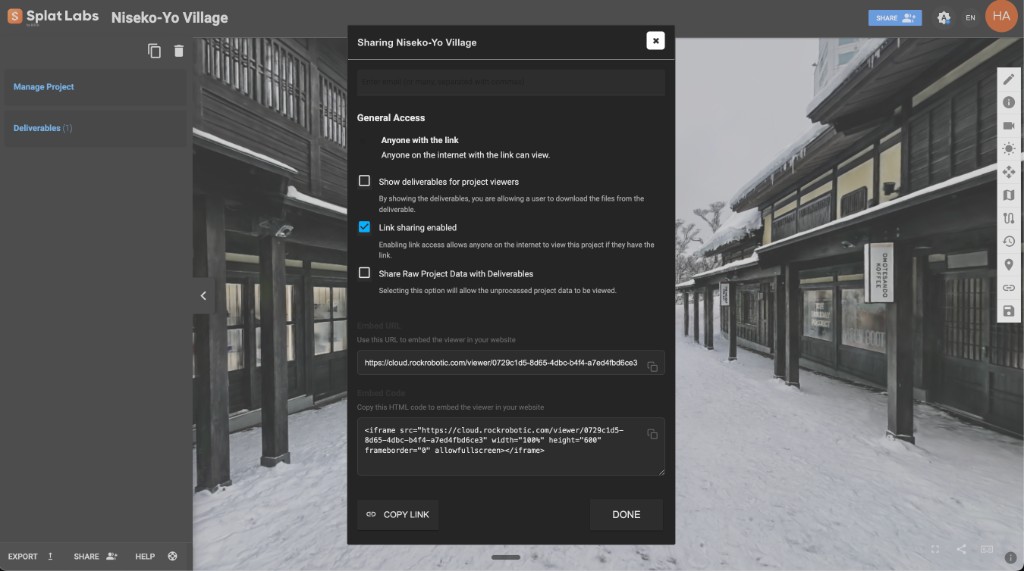 Nach dem Klicken auf EINBETTEN zeigt der Dialog Ihre Einbettungs-URL und den vollständigen HTML-Einbettungscode — klicken Sie einfach auf das Kopiersymbol neben einem der Felder.
Beide Felder haben ein Kopiersymbol auf der rechten Seite. Klicken Sie darauf, um den Wert in Ihre Zwischenablage zu kopieren.
Diese URL lädt einen interaktiven 3D-Viewer, der in jedem modernen Browser funktioniert — Desktop, Tablet oder Mobilgerät.
Schritt 3: Den Einbettungscode einfügen
Nehmen Sie den Einbettungscode (oder wickeln Sie die Viewer-URL in ein Standard-HTML-<iframe>-Tag) und fügen Sie ihn in das HTML Ihrer Website ein:
<iframe
  src="https://cloud.splatlabs.ai/viewer/{project-id}?view=splat"
  width="100%"
  height="600"
  frameborder="0"
  allowfullscreen
  loading="eager">
</iframe>
Das war's. Ihre Besucher können jetzt die vollständige 3D-Szene erkunden, ohne Ihre Seite zu verlassen.
Profi-Tipp: Setzen Sie
width="100%", damit sich der Viewer auf jede Bildschirmgröße dehnt. Passen Sieheightan Ihr Layout an — 500–700 Pixel funktionieren für die meisten Designs gut.
Live-Beispiele
Unten sind zwei Gaussian-Splat-Szenen, die auf Splat Labs Cloud gehostet werden. Interagieren Sie direkt hier — klicken und ziehen Sie, um zu drehen, scrollen Sie zum Zoomen und erkunden Sie jeden Winkel. Diese Einbettungen können kostenlos auf Ihrer eigenen Website verwendet werden. Kopieren Sie gerne den Einbettungscode unter jedem Viewer und fügen Sie ihn in Ihre Website ein. Der geteilte Viewer enthält das Splat Labs-Wasserzeichen.
Beispiel 1: Baustelle
Eine mehrwöchige Baustelle, erfasst mit LiDAR und als Gaussian Splat verarbeitet. Dies ist die Art von Einbettung, die Bauteams mit Remote-Stakeholdern teilen, damit diese die Baustelle erkunden können, ohne anreisen zu müssen.
Einbettungs-URL:
https://cloud.splatlabs.ai/viewer/e6d9b3eb-35bb-4a73-8499-8f2e3ad21d4b?view=splat
Einbettungscode (kopieren & einfügen):
<iframe
  src="https://cloud.splatlabs.ai/viewer/e6d9b3eb-35bb-4a73-8499-8f2e3ad21d4b?view=splat"
  width="100%"
  height="600"
  frameborder="0"
  allowfullscreen
  loading="eager">
</iframe>
Beispiel 2: Niseko Village — Verschneites Skigebiet
Eine fotorealistische Aufnahme eines verschneiten Skigebietsdorfes in Niseko, Japan. Diese Art von immersiver Einbettung ist perfekt für Tourismus, Gastgewerbe und Destinationsmarketing — potenzielle Besucher können einen Ort erkunden, bevor sie buchen.
Einbettungs-URL:
https://cloud.splatlabs.ai/viewer/0729c1d5-8d65-4dbc-b4f4-a7ed4fbd6ce3
Einbettungscode (kopieren & einfügen):
<iframe
  src="https://cloud.splatlabs.ai/viewer/0729c1d5-8d65-4dbc-b4f4-a7ed4fbd6ce3"
  width="100%"
  height="600"
  frameborder="0"
  allowfullscreen
  loading="eager">
</iframe>
Ihre Einbettung anpassen
Responsive Höhe
Für eine responsive Einbettung, die auf jedem Bildschirm ein 16:9-Seitenverhältnis beibehält, wickeln Sie Ihren iframe in einen Container:
<div style="position: relative; padding-bottom: 56.25%; height: 0; overflow: hidden;">
  <iframe
    src="https://cloud.splatlabs.ai/viewer/{project-id}?view=splat"
    style="position: absolute; top: 0; left: 0; width: 100%; height: 100%;"
    frameborder="0"
    allowfullscreen
    loading="eager">
  </iframe>
</div>
Diese Technik — manchmal als Seitenverhältnis-Box bezeichnet — wird häufig für Video- und Karteneinbettungen verwendet. Sie stellt sicher, dass Ihr Viewer auf allem gut aussieht, von einem 4K-Monitor bis zu einem Mobiltelefon.
Vollbreite-Einbettung
Soll der Viewer Ihre Inhaltsspalte durchbrechen und die volle Breite des Browsers überspannen? Verwenden Sie diesen Wrapper:
<div style="position: relative; width: 100vw; left: 50%; margin-left: -50vw;">
  <iframe
    src="https://cloud.splatlabs.ai/viewer/{project-id}?view=splat"
    width="100%"
    height="600"
    frameborder="0"
    allowfullscreen
    loading="eager">
  </iframe>
</div>
Ladeverhalten
loading="eager"— Der Viewer beginnt sofort zu laden, wenn die Seite geladen wird. Am besten, wenn die Einbettung im sichtbaren Bereich liegt oder der Hauptinhalt ist.loading="lazy"— Der Viewer lädt nur, wenn der Benutzer dazu scrollt. Am besten für Seiten mit mehreren Einbettungen oder wenn der Viewer weiter unten auf der Seite ist.
Plattform-für-Plattform-Einbettungsanleitung
Der Splat Labs-Viewer funktioniert überall, wo HTML oder iframes unterstützt werden. Unten ist eine detaillierte Anleitung für jede wichtige Plattform.
WordPress
WordPress bietet mehrere Möglichkeiten, einen iframe einzubetten, je nachdem, ob Sie den Block-Editor (Gutenberg) oder den klassischen Editor verwenden.
Block-Editor (Gutenberg) — empfohlen:
- Öffnen Sie die Seite oder den Beitrag, auf der/dem Sie den Viewer einbetten möchten.
- Klicken Sie auf den +-Block-Einfüger und suchen Sie nach Custom HTML.
- Fügen Sie den Custom-HTML-Block zur Seite hinzu.
- Fügen Sie den vollständigen iframe-Einbettungscode in den Block ein.
- Klicken Sie auf Vorschau, um zu bestätigen, dass er korrekt dargestellt wird, dann veröffentlichen.
Klassischer Editor:
- Öffnen Sie Ihre Seite oder Ihren Beitrag und wechseln Sie zur Registerkarte Text (nicht Visuell).
- Fügen Sie den iframe-Einbettungscode direkt dort ein, wo er erscheinen soll.
- Wechseln Sie zurück zur visuellen Registerkarte zur Vorschau, dann veröffentlichen.
Mit einem Plugin (optional):
Wenn Sie iframes häufig einbetten, ermöglicht das iFrame-Plugin (verfügbar auf WordPress.org mit 70.000+ aktiven Installationen) die Verwendung eines einfachen Shortcodes anstelle von reinem HTML:
[iframe src="https://cloud.splatlabs.ai/viewer/{project-id}?view=splat" width="100%" height="600"]
Das funktioniert sowohl im Block-Editor als auch im klassischen Editor, ohne zur HTML-Ansicht wechseln zu müssen.
Elementor / andere Page-Builder:
Die meisten Page-Builder wie Elementor, Divi und Beaver Builder enthalten einen HTML- oder Code-Block. Legen Sie diesen Block auf Ihrer Seite ab und fügen Sie den iframe-Code ein.
Fehlerbehebung: Wenn die Einbettung einen leeren Bereich zeigt, stellen Sie sicher, dass sowohl Ihre WordPress-Website als auch der Splat Labs-Viewer über HTTPS bereitgestellt werden. Gemischte Inhalte (HTTP-iframe auf einer HTTPS-Seite) werden von modernen Browsern blockiert. Splat Labs Cloud verwendet immer HTTPS, daher sollte das kein Problem sein. Wenn Sie sich in einem WordPress-Multisite-Setup befinden, bestätigen Sie, dass ungefiltertes HTML für Ihre Benutzerrolle aktiviert ist.
Squarespace
Squarespace unterstützt iframes durch Code-Blöcke, aber es gibt eine wichtige Plan-Anforderung zu beachten.
Plan-Anforderung: Das Hinzufügen von JavaScript oder iframes zu Code-Blöcken erfordert Business-, Commerce-Basic-, Commerce-Advanced-, Core-, Plus- oder Advanced-Pläne. Der Personal-Plan unterstützt nur einfaches HTML, Markdown und CSS in Code-Blöcken — iframes werden nicht gerendert.
So einbetten:
- Öffnen Sie den Seiteneditor in Squarespace.
- Klicken Sie auf einen Einfügepunkt (die Linie zwischen Inhaltsabschnitten) oder klicken Sie auf Block hinzufügen.
- Wählen Sie Code aus dem Block-Menü.
- Fügen Sie den vollständigen iframe-Einbettungscode in den Code-Block-Editor ein.
- Klicken Sie außerhalb des Blocks, um zu speichern. Die Einbettung sollte im Editor erscheinen.
Wenn die Einbettung beim Bearbeiten nicht erscheint: Das ist erwartetes Verhalten. Squarespace versteckt manchmal iframe-Inhalt, wenn Sie als Sicherheitsmaßnahme angemeldet sind. Klicken Sie auf Vorschau oder sehen Sie Ihre veröffentlichte Website in einem Inkognito-Fenster an, um zu bestätigen, dass die Einbettung für Besucher korrekt dargestellt wird.
Einen Einbettungsblock anstelle eines Code-Blocks verwenden:
Squarespace hat auch einen separaten Einbettungsblock, der URLs von oEmbed-kompatiblen Diensten akzeptiert. Da Splat Labs Cloud kein oEmbed-Anbieter ist, sollten Sie die oben beschriebene Code-Block-Methode verwenden — nicht den Einbettungsblock. Wenn Sie den Einbettungsblock ausprobieren und die rohe URL einfügen, erkennt Squarespace sie möglicherweise nicht oder zeigt einen "nicht unterstützt"-Fehler an.
Tipp: Wenn Sie sich auf einem Squarespace-Personal-Plan befinden und Code-Blöcke mit iframes nicht verwenden können, erwägen Sie ein Upgrade auf den Business-Plan — oder verlinken Sie direkt auf Ihre Splat Labs-Viewer-URL als normalen Hyperlink, damit Besucher sie in einem neuen Tab öffnen können.
Webflow
Webflow behandelt benutzerdefinierten Code als erstklassiges Designelement durch sein Einbettungselement (auch als Code-Einbettung bezeichnet).
So einbetten:
- Öffnen Sie den Webflow-Designer für Ihr Projekt.
- Öffnen Sie das Hinzufügen-Panel (das +-Symbol in der linken Seitenleiste).
- Suchen Sie nach Einbettung (unter dem Abschnitt Komponenten) oder scrollen Sie dazu und ziehen Sie es auf die Leinwand, wo der Viewer erscheinen soll.
- Der Code-Editor öffnet sich automatisch — fügen Sie den vollständigen iframe-Einbettungscode ein.
- Klicken Sie auf Speichern & Schließen.
Der iframe wird direkt auf der Webflow-Leinwand vorschauen. In <iframe>-Tags eingewickelter Inhalt rendert eine Live-Vorschau im Designer, sodass Sie den Splat Labs-Viewer sofort sehen sollten.
Plan-Anforderung: Das Einbettungselement ist in allen Webflow-Workspace-Plänen verfügbar (Core, Growth, Agency, Freelancer) und auf jeder Website mit einem aktiven Site-Plan. Kostenlose Staging-Websites können es ebenfalls verwenden.
Wix
Wix bietet ein dediziertes HTML-iFrame-Element zum Einbetten externer Inhalte.
Wix-Editor — so einbetten:
- Klicken Sie im Wix-Editor auf die Schaltfläche + (Hinzufügen) in der linken Seitenleiste.
- Navigieren Sie zu Code einbetten → HTML einbetten.
- Ein graues Feld erscheint auf Ihrer Seite — ziehen Sie es an die gewünschte Position und passen Sie die Größe nach Bedarf an.
- Klicken Sie auf das Element, dann auf Code eingeben.
- Wählen Sie Code (nicht Website-Adresse).
- Fügen Sie den vollständigen iframe-Einbettungscode in das Textfeld ein.
- Klicken Sie auf Aktualisieren (oder Anwenden).
Notion
Notion akzeptiert weder reines HTML noch <iframe>-Code. Stattdessen betten Sie Inhalt ein, indem Sie eine URL in einen Einbettungsblock einfügen, und Notion übernimmt das iframe-Rendering im Hintergrund.
So einbetten:
- Öffnen Sie die Notion-Seite, auf der Sie den Viewer haben möchten.
- Geben Sie
/einbettenin einer neuen Zeile ein oder klicken Sie auf die Schaltfläche + und wählen Sie Einbettung. - Fügen Sie die Splat Labs-Viewer-URL ein (nicht den iframe-Code — nur die URL):
https://cloud.splatlabs.ai/viewer/{project-id}?view=splat - Klicken Sie auf Link einbetten.
Notion rendert den Viewer in einem inline Frame. Sie können ihn durch Hovern über den Block und Ziehen der Griffe auf beiden Seiten skalieren.
Wichtig: Verwenden Sie die URL, nicht den iframe-Code. Notions Einbettungsblock erwartet eine saubere https://-URL. Wenn Sie das vollständige <iframe>-HTML-Tag einfügen, funktioniert es nicht.
Zillow / MLS-Angebote
Zillow und die meisten MLS-Plattformen unterstützen virtuelle Rundgang-Links, aber sie funktionieren anders als Standard-iframe-Einbettungen. Sie fügen keinen iframe-Code direkt ein — stattdessen geben Sie die Viewer-URL in ein dediziertes Feld an.
So zu Zillow hinzufügen:
- Melden Sie sich bei Ihrem Zillow-Agenten-Konto unter zillow.com an.
- Navigieren Sie zu Ihrem Angebote-Dashboard und wählen Sie die Immobilie aus.
- Klicken Sie auf Angebot bearbeiten.
- Scrollen Sie zum Abschnitt Fotos — darunter finden Sie ein Feld mit der Bezeichnung Virtual-Tour-URL.
- Fügen Sie die Splat Labs-Viewer-URL ein:
https://cloud.splatlabs.ai/viewer/{project-id}?view=splat - Scrollen Sie nach unten und klicken Sie auf Aktualisieren, um zu speichern.
Zillow fügt Ihrer Angebotsseite eine Schaltfläche "Virtuellen Rundgang ansehen" hinzu. Besucher klicken darauf, um den 3D-Viewer zu öffnen.
React / Next.js
In React- und Next.js-Projekten verwenden Sie den iframe direkt in Ihrem JSX. Das HTML-<iframe>-Tag funktioniert nativ — beachten Sie nur die JSX-Attribut-Namensunterschiede.
Einfache React-Komponente:
export default function SplatViewer({ projectId }) {
  return (
    <iframe
      src={`https://cloud.splatlabs.ai/viewer/${projectId}?view=splat`}
      width="100%"
      height="600"
      frameBorder="0"
      allowFullScreen
      loading="eager"
      style={{ border: 'none' }}
    />
  );
}
Wichtige JSX-Unterschiede zu HTML:
frameborder→frameBorder(camelCase)allowfullscreen→allowFullScreen(camelCase)- Verwenden Sie
style={{ border: 'none' }}anstelle vonframeborder="0"für strengere React-Konformität
Responsive Wrapper-Komponente:
export default function ResponsiveSplatViewer({ projectId }) {
  return (
    <div style={{
      position: 'relative',
      paddingBottom: '56.25%',
      height: 0,
      overflow: 'hidden'
    }}>
      <iframe
        src={`https://cloud.splatlabs.ai/viewer/${projectId}?view=splat`}
        style={{
          position: 'absolute',
          top: 0,
          left: 0,
          width: '100%',
          height: '100%',
          border: 'none'
        }}
        allowFullScreen
        loading="eager"
      />
    </div>
  );
}
Benutzerdefiniertes HTML / Jede Website
Wenn Sie direkten Zugang zu den HTML-Quelldateien Ihrer Website haben, ist das Einbetten so einfach wie das Einfügen des iframe-Codes in den <body> jeder Seite:
<iframe
  src="https://cloud.splatlabs.ai/viewer/{project-id}?view=splat"
  width="100%"
  height="600"
  frameborder="0"
  allowfullscreen
  loading="eager">
</iframe>
Das funktioniert auf jeder statischen HTML-Website, jeder server-gerenderten Website (PHP, Python, Ruby usw.) und jedem CMS, das Ihnen erlaubt, den Seitenquellcode direkt zu bearbeiten.
Häufig gestellte Fragen
Ist das Einbetten kostenlos?
Ja. Jedes Splat Labs-Projekt kann ohne zusätzliche Kosten geteilt und eingebettet werden. Geteilte Einbettungen zeigen das Splat Labs-Wasserzeichen. Business- und Enterprise-Pläne bieten reduziertes oder White-Label-Branding.
Müssen meine Besucher etwas installieren?
Nein. Der Viewer läuft vollständig im Browser mit WebGL. Er funktioniert in Chrome, Safari, Firefox und Edge — auf Desktop, Tablet und Mobilgerät.
Kann ich die anfängliche Kameraposition steuern?
Ja. Stellen Sie Ihren bevorzugten Kamerawinkel im Splat Labs-Viewer ein, bevor Sie teilen. Die Einbettung wird an dieser genauen Position geladen.
Beeinflusst die Einbettung meine Seitenladegeschwindigkeit?
Der iframe lädt unabhängig von Ihrem Seiteninhalt. Die Verwendung von loading="lazy" stellt sicher, dass der Viewer nur geladen wird, wenn er in den sichtbaren Bereich gescrollt wird, sodass er minimalen Einfluss auf Ihre anfängliche Seitenladzeit hat.
Kann ich auf mehreren Seiten einbetten?
Absolut. Es gibt keine Begrenzung, wie viele Seiten denselben Viewer einbetten können. Der Viewer wird vom Splat Labs CDN bereitgestellt, sodass er überall schnell lädt.
Warum zeigt die Einbettung einen leeren Bereich?
Die häufigsten Ursachen sind Mixed-Content-Blockierung (HTTP-Seite lädt HTTPS-iframe oder umgekehrt) und der Quell-Website, die iframes über X-Frame-Options- oder Content-Security-Policy-Header blockiert. Splat Labs Cloud stellt alle Viewer-URLs über HTTPS bereit und erlaubt standardmäßig iframe-Einbettungen, sodass Sie, wenn Sie einen leeren Bereich sehen, überprüfen sollten, ob Ihre eigene Website ebenfalls über HTTPS bereitgestellt wird.
Kann ich das Viewer-Branding anpassen?
Kostenlose geteilte Links enthalten das Splat Labs-Wasserzeichen. Business- und Enterprise-Pläne bieten White-Label-Optionen, bei denen Sie Branding entfernen oder durch Ihr eigenes Logo ersetzen können.
Bereit, Ihre eigene einzubetten?
Das Erstellen und Einbetten eines Gaussian-Splat-Viewers dauert nur wenige Minuten:
- Kostenlos anmelden unter cloud.splatlabs.ai
- Hochladen Ihrer Gaussian-Splat-Datei (PLY, SPLAT, KSPLAT oder XGRIDS-Format)
- Auf Teilen klicken und die Einbettungs-URL oder den iframe-Code kopieren
- Einfügen in Ihre Website, Ihr Blog oder Ihre Angebotsplattform
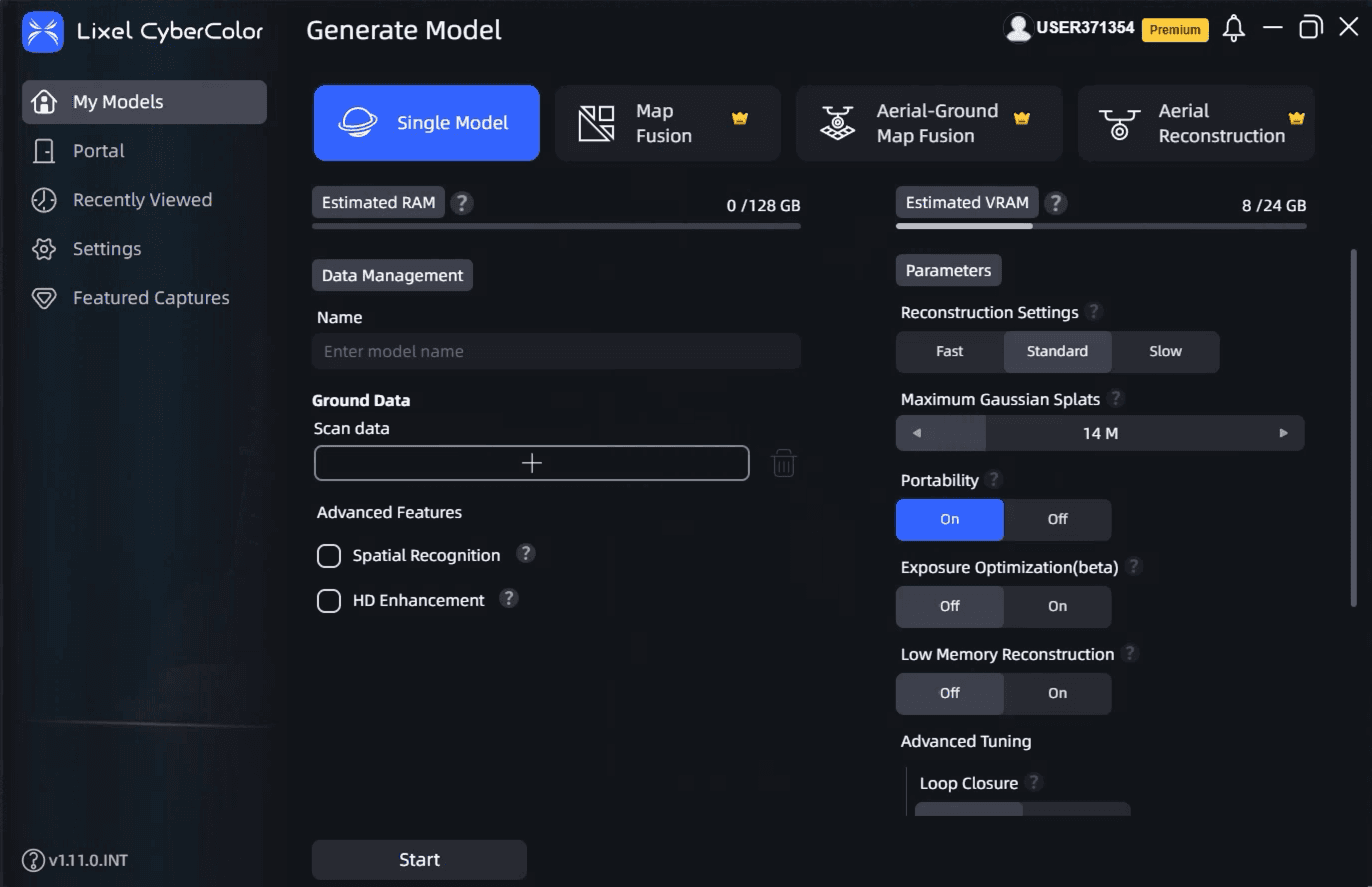
Splat Labs unterstützt Gaussian Splats aus jeder Quelle — PortalCam, Lixel L2 Pro, Postshot, Kiri Engine, Luma AI, XGRIDS oder jedes andere Werkzeug, das Standard-Splat-Formate ausgibt.
Benötigen Sie Hilfe beim Einbetten auf einer bestimmten Plattform? Kontaktieren Sie unser Team — wir führen Sie gerne durch den Prozess.