
Overview
One of the most important aspects of working with 3D scan data is controlling who can see it and what they can do with it. Splat Labs gives you granular sharing and access control tools so you can share projects privately with specific people, publicly with anyone, or embedded directly on a website — all while controlling exactly what data viewers can access.
Every project on Splat Labs has two sharing paths:
- Private (Email Sharing) — Invite specific people by email address. Only those recipients can view the project.
- Public (Link Sharing) — Generate a shareable link. Anyone with the link can view.
On top of that, you control what viewers see by toggling access to deliverables and raw project data — two distinct categories of data that exist within every project.
How to Share a Project
To open the sharing dialog, navigate to your project in Splat Labs Cloud and open the left sidebar drawer. At the bottom of the sidebar, click SHARE. You can also click the SHARE button in the top-right corner of the viewer.
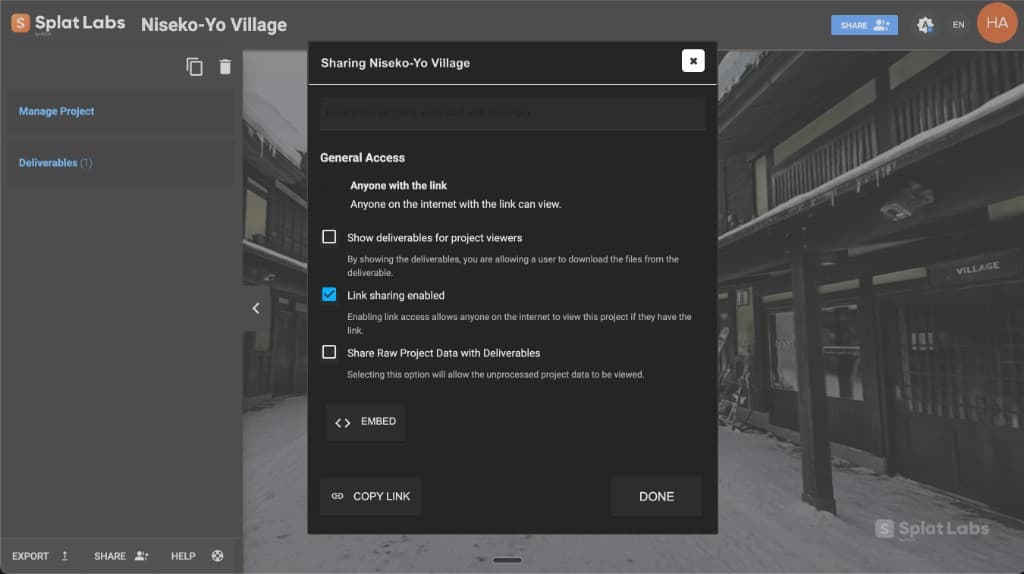
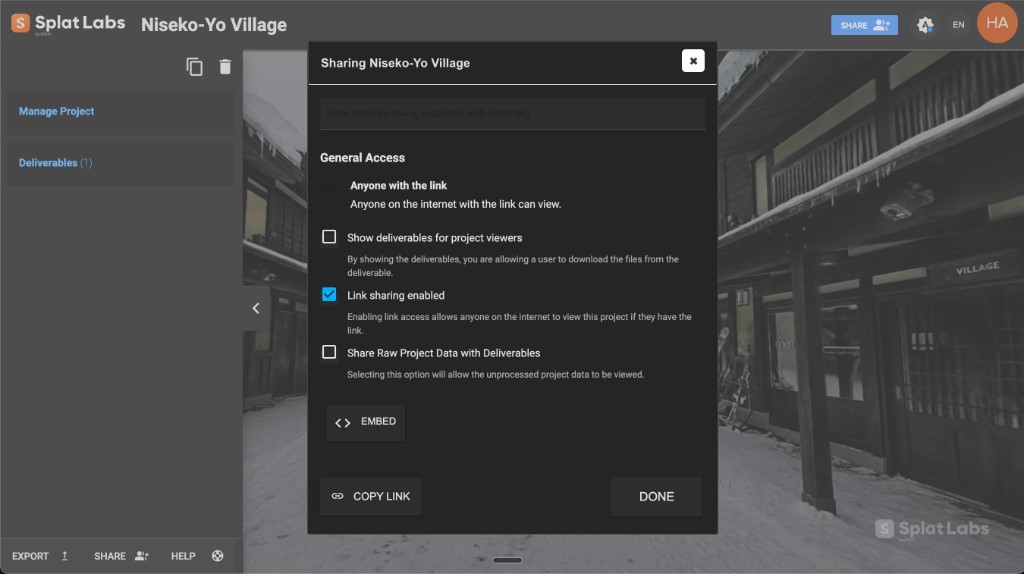 The Splat Labs project sharing dialog. Enter email addresses at the top, then configure access controls below.
Email Sharing (Private Access)
Email sharing is the primary way to share a project privately. Only the specific people you invite can access the project — no public links, no accidental exposure.
How it works
- Open the Share dialog on your project.
- In the email field at the top of the dialog, enter one or more email addresses, separated by commas.
- Click DONE (or press Enter) to send the invitations.
Each recipient receives an email notification with a link to the project. When they click the link, they will be prompted to register a free Splat Labs account (or log in if they already have one). Once authenticated, they can access the project.
Key details
- Restricted access — Only the email addresses you specify can view the project. No one else can access it, even if they somehow obtain the link.
- Unlimited recipients — Add as many email addresses as you need, comma separated.
- Free for viewers — Recipients do not need a paid Splat Labs subscription. They register a free account to view the shared project.
- Instant delivery — Invitation emails are sent immediately.
Link Sharing (Public Access)
If you want to share your project more broadly — with clients, on social media, or anywhere a direct link is convenient — you can enable link sharing.
How it works
- Open the Share dialog on your project.
- Check the "Link sharing enabled" checkbox.
- Click COPY LINK at the bottom of the dialog to copy the shareable URL to your clipboard.
Once link sharing is enabled, anyone on the internet with the link can view the project. No account is required for viewers — they simply open the link in a browser.
When to use link sharing vs. email sharing
| Scenario | Recommended Method |
|---|---|
| Sharing with a specific client or team member | Email sharing |
| Posting on social media or a portfolio | Link sharing |
| Embedding on a website (public) | Link sharing |
| Embedding on a website (access-controlled) | Email sharing (Business+) or Enterprise groups |
| Sensitive or confidential project data | Email sharing only |
| Sharing with a large audience (marketing, presentations) | Link sharing |
Note: Embeds work with both public and access-controlled projects. With link sharing enabled, anyone can view the embed without signing in. With email sharing (Business+) or Enterprise groups, only authorized users can view the embed — they will be prompted to sign in when the iframe loads. See our full guide: How to Embed a 3D Gaussian Splat Viewer on Your Website.
Controlling What Viewers Can See
Beyond controlling who can access your project, Splat Labs lets you control what they can see. Every project has two categories of data, and you can toggle access to each independently.
Understanding the Two Data Categories
1. Raw Project Data
When you create a project and upload your Gaussian Splat file, that becomes the raw project data. This is the core 3D scan data — the Gaussian Splat itself and everything that was uploaded or processed as part of the project. This is what gets visualized in the 3D viewer.
Raw project data includes:
- The Gaussian Splat model (the 3D scene viewers navigate)
- Any scan files, measurements, or exports associated with the project
- The underlying data that powers the viewer experience
2. Deliverables
The Deliverables section is a separate area within each project where you can attach additional files. These are supplemental materials you want to present alongside the 3D viewer — think of it as a curated package of files for your client or stakeholder.
Deliverables can include:
- PDF reports
- Floor plan exports
- Photos and images
- Documents, contracts, or notes
- Any other files relevant to the project
You add deliverables by navigating to the Deliverables section in the project sidebar and uploading the files you want to include.
Access Control Checkboxes
In the sharing dialog, two checkboxes control what viewers can access:
Show deliverables for project viewers
When checked, viewers who access your project will be able to see and download the files you have attached in the Deliverables section. This is useful when you want to present a polished package — for example, sharing a 3D scan of a property along with a PDF floor plan, a photo gallery, or an inspection report.
When unchecked, viewers only see the 3D viewer itself. The Deliverables section is hidden from them.
Share Raw Project Data with Deliverables
When checked, viewers can access the unprocessed, raw project data alongside the deliverables. This gives them full access to everything — the original scan data, exports, and any associated files.
When unchecked, the raw project data stays private. Viewers can only see the 3D viewer (and deliverables, if that option is enabled).
Common Access Configurations
| Configuration | What the Viewer Sees |
|---|---|
| Both unchecked | 3D viewer only — no downloadable files |
| Deliverables only | 3D viewer + curated deliverable files you attached |
| Raw data only | 3D viewer + raw project data (scan files, exports) |
| Both checked | 3D viewer + deliverables + raw project data (full access) |
This layered approach means you can tailor the experience for each audience:
- Client presentation — Enable deliverables only. Show the 3D walkthrough plus polished reports and floor plans, but keep the raw scan data private.
- Internal team review — Enable both. Give your team full access to everything.
- Public showcase — Disable both. Let viewers explore the 3D scene without access to any downloadable files.
Folder Sharing
In addition to sharing individual projects, Splat Labs allows you to share entire folders. This is useful when you have multiple related projects grouped together — for example, all scans for a single property, a client's full portfolio, or all phases of a construction project.
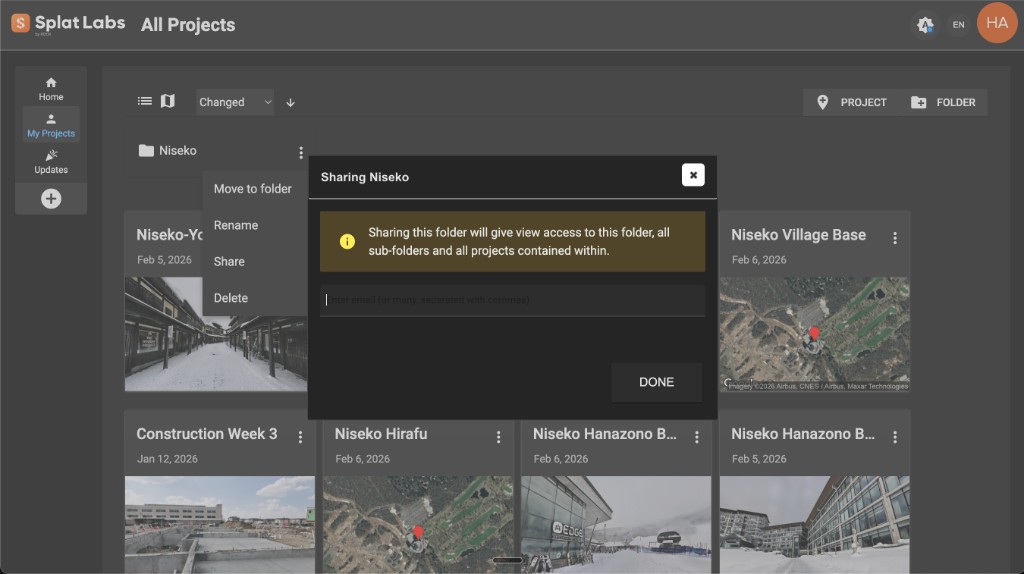 Sharing a folder in Splat Labs. The dialog confirms that sharing gives view access to the folder, all sub-folders, and all projects contained within.
How it works
- Navigate to My Projects in the Splat Labs dashboard.
- In the top-right corner, click FOLDER to create a new folder and give it a name.
- Click the three-dot menu on the folder you want to share.
- Select Share from the dropdown menu.
- In the sharing dialog, enter the email addresses of the people you want to share with.
- Click DONE to send the invitations.
What folder sharing includes
When you share a folder, the recipient gets view access to:
- The folder itself
- All sub-folders within that folder
- All projects contained within the folder and its sub-folders
This makes it easy to share an entire body of work with a single action, rather than sharing each project individually.
Important: Folder sharing is email-only — there is no public link option for folders. You must enter the email addresses of each person you want to grant access to.
Tip: Organize your projects into folders by client, property, or job before sharing. That way, you can grant a client access to everything related to their project with one share action.
Available on: Folder organization requires a Business plan or above. Enterprise plans add multi-user access and role-based permissions on top of folder sharing.
Embed Sharing
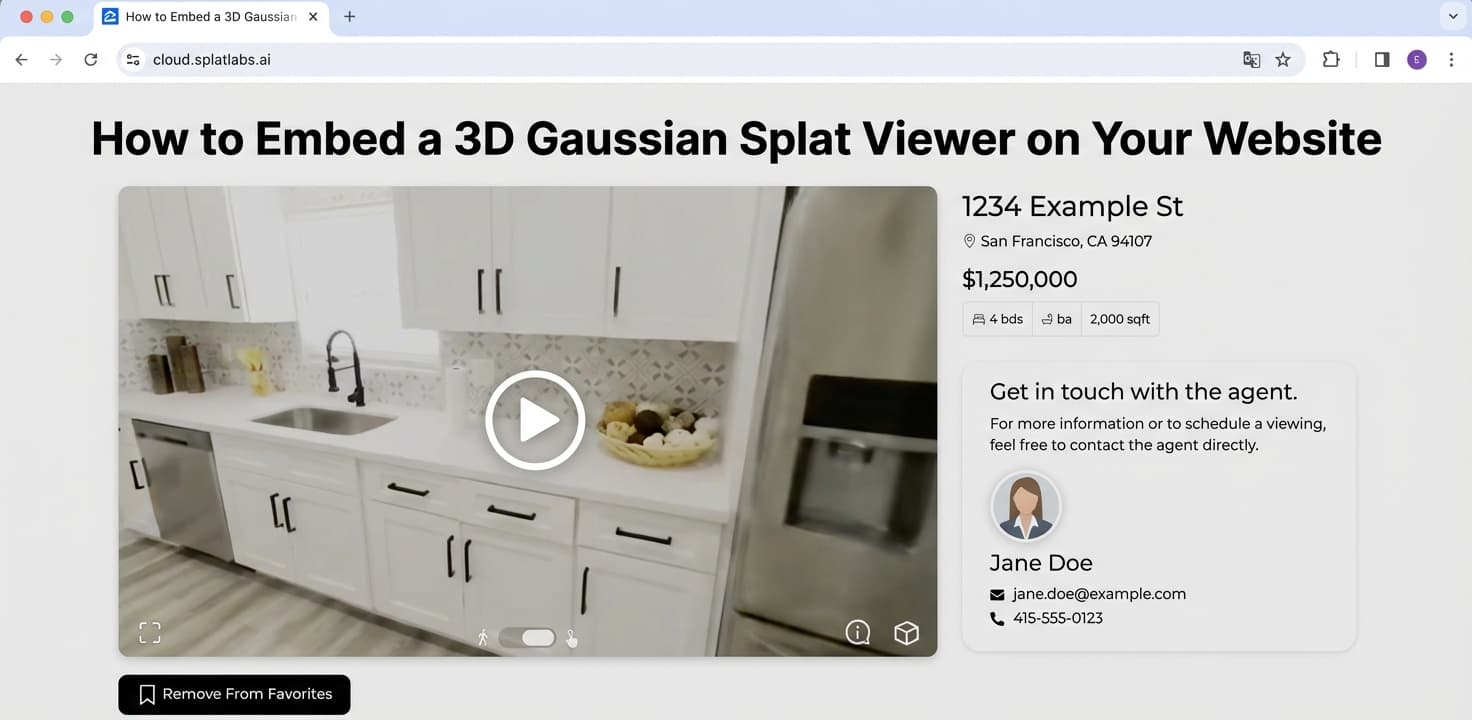
Beyond links and email invitations, Splat Labs lets you embed your 3D viewer directly on any website using a simple HTML iframe. Visitors explore the full interactive 3D scene without ever leaving your page — no plugins, no app installs, no special viewer software.
How to get the embed code
- Open the Share dialog on your project.
- Click the EMBED button to expand the embed section.
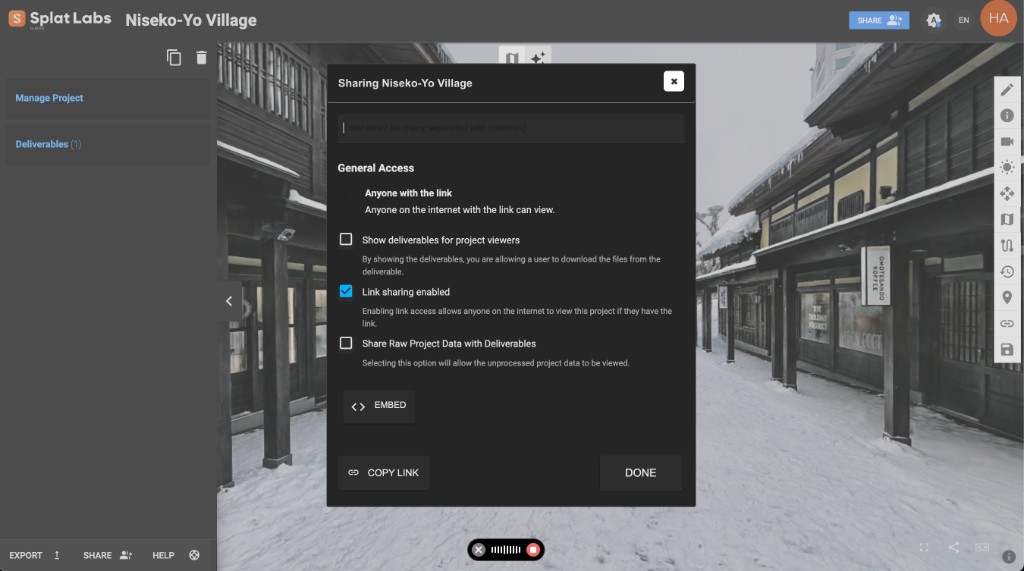 Click the EMBED button at the bottom of the sharing dialog to reveal the embed URL and iframe code.
Public vs. access-controlled embeds: If link sharing is enabled, anyone can view the embed without signing in — best for marketing, portfolios, and public-facing content. If link sharing is disabled and you share via email (Business+) or use Enterprise groups, only authorized users can view the embed. Unauthorized visitors see a sign-in prompt. This lets you embed access-controlled 3D viewers on internal sites, client portals, or enterprise platforms like ArcGIS and Autodesk Construction Cloud.
You will see two fields:
- Embed URL — The direct viewer URL you can paste into platforms like Zillow, Notion, or MLS.
- Embed Code — A ready-made HTML
<iframe>snippet you can copy and paste straight into your website.
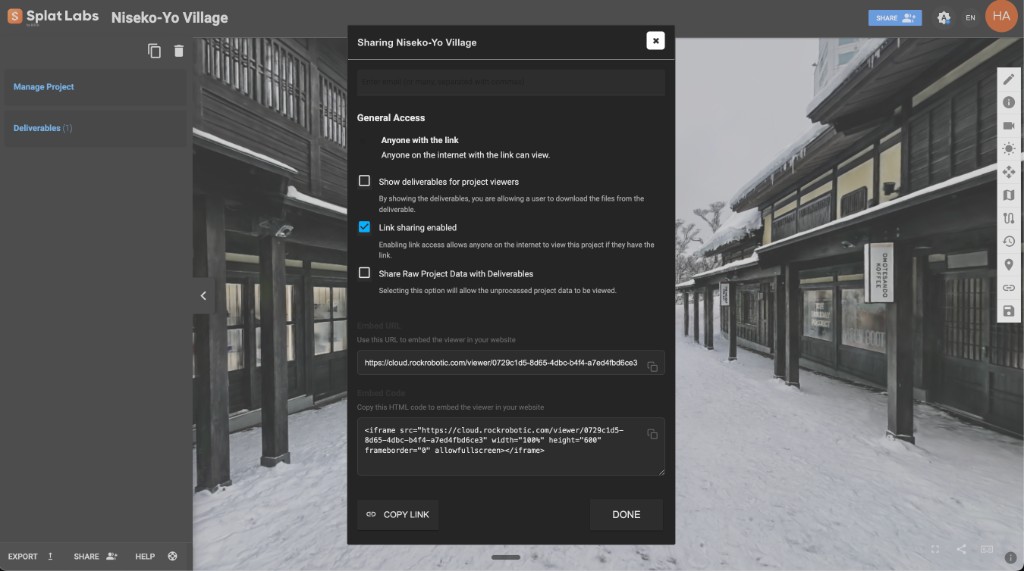 After clicking EMBED, the dialog shows your Embed URL and the full HTML embed code. Click the copy icon next to either field.
The embed code
Copy the iframe code and paste it into your site's HTML:
<iframe
  src="https://cloud.splatlabs.ai/viewer/{project-id}?view=splat"
  width="100%"
  height="600"
  frameborder="0"
  allowfullscreen
  loading="eager">
</iframe>
Set width="100%" so the viewer stretches to fill its container on any screen size. Adjust height to suit your layout — 500–700 pixels works well for most designs.
Where it works
The embed code works on any website or CMS that accepts HTML, including:
- WordPress, Squarespace, Webflow, Wix
- Zillow, MLS, Realtor.com
- Notion, Confluence
- React, Next.js, or any custom website
- Email newsletters (as a linked thumbnail)
Full embed guide
For platform-specific walkthroughs with step-by-step screenshots — including how to customize the viewer dimensions, add responsive containers, and troubleshoot common issues — see our dedicated guide:
Enterprise Access Control
For teams and organizations that need centralized storage, collaboration, and administrative control, the Enterprise plan provides a complete team-ready platform. Enterprise is built for surveying firms, mapping organizations, AEC teams, and any multi-user team that works with 3D scan data at scale.
What You Get with Enterprise
- Multi-User Access — Enterprise plans start with 3 users and 50 projects, scaling up to 20+ users and 500+ projects. Every user gets access to the full suite of processing and analysis tools.
- Network Licensing — Network-based processing licenses that automatically check in and check out across your team — no manual license management required.
Enterprise Groups and Automatic Project Sharing
The most powerful feature for team collaboration is Enterprise groups. When your team is organized into a group:
- Every project created by any user in the group is automatically available to all other group members — no per-project sharing required.
- Group members can view, access, and embed any group project immediately. This means iframe embeds, dashboard integrations, and hyperlinks all work for the entire team without manual sharing steps.
- You can still create private projects that are not shared with the group when needed.
- Enterprise Managers have full visibility across all projects in the organization regardless of group membership.
This is especially valuable for iframe embeds and integrations with platforms like ArcGIS, Autodesk Construction Cloud, and Revit. Instead of sharing each project individually before embedding it, your entire team automatically has access. Embedded viewers are access-controlled by group membership — only authenticated group members can view the 3D scene.
Enterprise Roles and Permissions
Enterprise provides three roles with granular permissions:
| Permission | Enterprise Manager | Creator | User |
|---|---|---|---|
| Manage Users | Yes | — | — |
| Manage Enterprise | Yes | — | — |
| Create Folder | Yes | Yes | — |
| Create Project | Yes | Yes | — |
| View All Projects/Folders* | Yes | — | — |
| Modify All Projects/Folders* | Yes | — | — |
| Modify Own Projects (owner or editor) | — | Yes | Yes |
| Delete Own Projects (only owned) | — | Yes | Yes |
| View Own Projects (owner, editor, or viewer) | Yes | Yes | Yes |
| Share Own Folder (owner or editor) | Yes | Yes | Yes |
| Share All Folders* | Yes | — | — |
| Purchase Tokens | Yes | Yes | Yes |
| Order Deliverables on Owned Projects | Yes | Yes | Yes |
* "All" refers to all projects/folders within the enterprise, not all projects on the platform.
Enterprise Manager — Full administrative control. Can manage users, view and modify all folders and projects across the organization, and access all job orders and receipts.
Creator — A power-user role that can create folders and projects, manage their own content, purchase tokens, and order deliverables. Creators cannot manage other users or access content they do not own or have explicit access to.
User — A standard team member role. Users can view and modify projects they own or have been given access to, purchase tokens, and order deliverables. They cannot create new folders or projects.
Key Enterprise Benefits
- Scalable plans — Start with 3 users and 50 projects, scale up to 20+ users and 500+ projects
- Automatic project sharing — Enterprise groups share projects across the team without manual per-project sharing
- Access-controlled iframes — Embedded viewers are protected by group membership, not public links
- Granular permissions — Control who can view, edit, delete, and share at the folder and project level
- Network licensing — Processing licenses float across your team automatically
- White Label Branding — Remove all Splat Labs branding and present the 3D viewer under your own brand
Business Plan: Per-Project Access Control
If you do not need the full Enterprise feature set, the Business plan also supports access-controlled embeds. Share individual projects with specific users by email, and those users can view the project in iframes after authenticating. This is ideal for firms that need to share access-controlled 3D views with external clients or collaborators on a per-project basis.
Need Enterprise access for your team? See pricing or contact our team to discuss options tailored to your organization.
Summary
| Feature | Description | Available On |
|---|---|---|
| Email Sharing | Private sharing — invite specific people by email | All plans |
| Link Sharing | Public sharing — anyone with the link can view | All plans |
| Embed Sharing (Public) | Embed the 3D viewer on any website — anyone can view | Starter+ |
| Embed Sharing (Access-Controlled) | Embed the 3D viewer with authentication — only authorized users can view | Business+ / Enterprise |
| Deliverables Toggle | Control whether viewers can see attached deliverable files | All plans |
| Raw Data Toggle | Control whether viewers can access raw project data | All plans |
| Folder Sharing | Share an entire folder (all sub-folders and projects) via email | Business+ |
| Enterprise Groups | Automatic project sharing across all group members — no per-project sharing needed | Enterprise |
| Multi-User Access | 3–20+ team members, 50–500+ projects | Enterprise |
| Role-Based Permissions | Three roles (Enterprise Manager, Creator, User) with granular access control | Enterprise |
| Network Licensing | Processing licenses float across the team automatically | Enterprise |
| White Label Branding | Remove Splat Labs branding entirely | Enterprise |
Whether you are sharing a single project with a client, distributing an entire portfolio of scans to a team, or embedding an interactive 3D viewer on your website, Splat Labs gives you the tools to control exactly who sees what — and how they experience it.
Related Articles
- How to Embed a 3D Gaussian Splat Viewer on Your Website
- Getting Started with Gaussian Splatting
- How to Create 3D Gaussian Splats
Questions about sharing or access control? Contact our team — we are happy to help.