
A 3D Gaussian Splat captures what a space looks like. But what about everything you know about it?
The inspection report for that beam. The architect's PDF for the second floor. A client walkthrough on YouTube. The contractor's punch list. Right now, all of that context lives somewhere else — buried in email threads, scattered across Dropbox folders, or lost entirely.
Splat Labs annotations change that. You right-click anywhere inside your 3D Gaussian Splat, pin a note to that exact location, and attach whatever your collaborators need — documents, PDFs, YouTube videos, or rich text descriptions. Anyone who opens the model sees the annotation icon floating in 3D space. Click it, and the context is right there.
No separate file shares. No "see attached." The information lives where it matters — inside the 3D model itself.
How It Works: Attaching a PDF
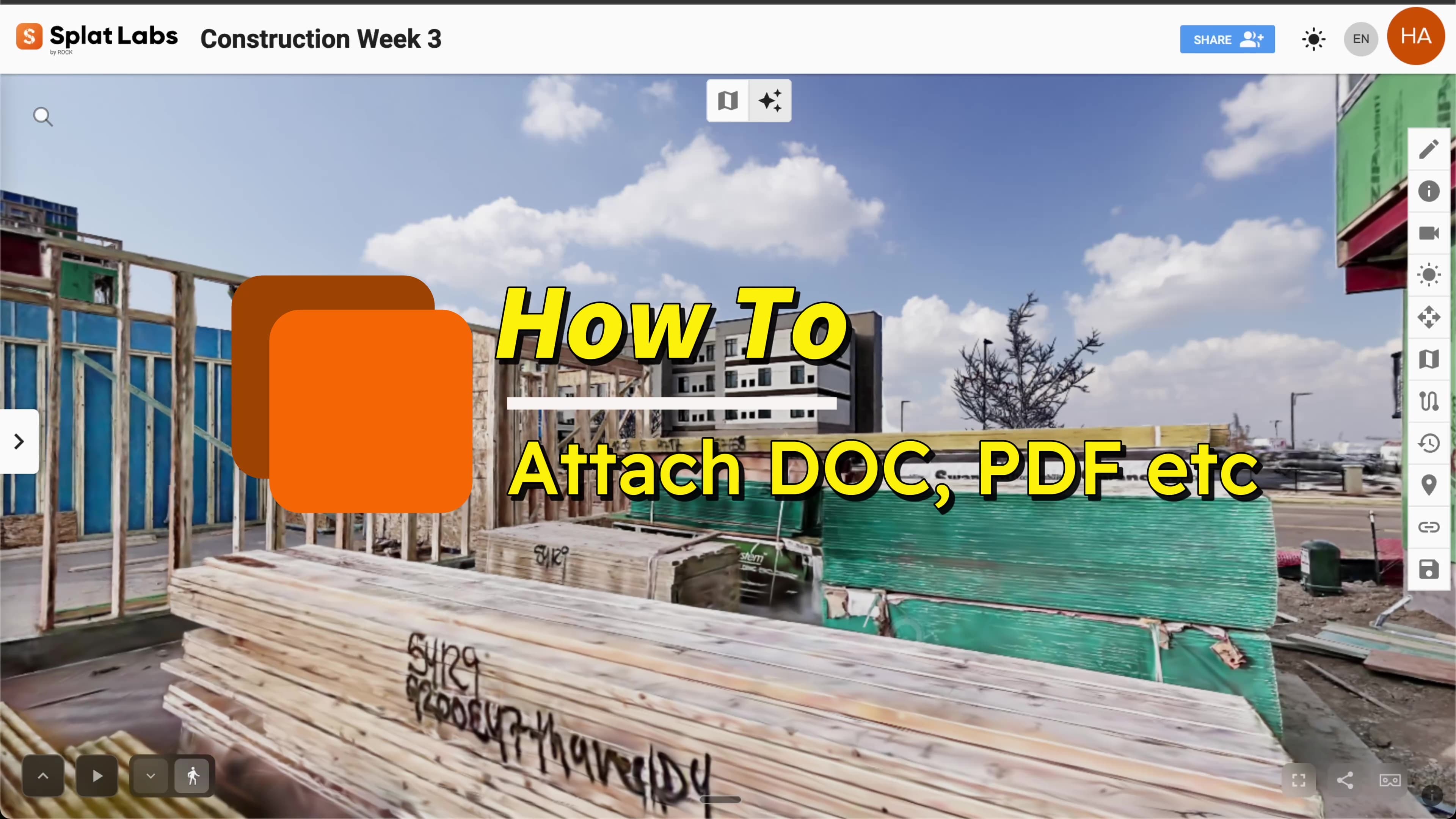
Right-click anywhere in the 3D Gaussian Splat, create an annotation, and attach a PDF — viewable by anyone who opens the model.
The workflow takes about thirty seconds:
- Right-click anywhere inside your 3D Gaussian Splat to open the annotation menu.
- Add a title and description. The description supports rich text formatting, so you can bold key details, add bullet lists, or include links.
- Attach your file. Browse your computer or drag and drop a document directly into the annotation panel. PDFs, Word docs, images — whatever your team needs access to.
- Adjust the icon. Choose the icon type and color that will represent this annotation in the 3D space. Use different colors to distinguish between inspection reports, design docs, and client notes.
- Set the screenshot. The annotation captures a thumbnail of the current viewpoint, so collaborators can see exactly where in the model this note is pinned.
- Click Save.
That is it. Your annotation is now live. A colored icon appears in the 3D space at the exact location you right-clicked. When anyone — a colleague, a client, a stakeholder — clicks that icon, they can read the description, download the document, or view the PDF inline. No account required for viewers.
How It Works: Attaching a YouTube Video
Paste a YouTube URL into an annotation, and the video is playable directly inside the 3D model.
The process for embedding a YouTube video is the same — right-click, add a title and description, then paste the YouTube URL into the video field. When someone clicks the annotation icon in the 3D space, the YouTube video plays right there. No redirect, no new tab. The video lives spatially inside the model.
This is particularly useful when you want to:
- Record a walkthrough explanation and pin it to the relevant area of the model.
- Link training videos to specific equipment or systems within a facility scan.
- Attach client testimonials to the spaces they are talking about.
- Embed manufacturer installation guides at the exact point where a product is installed.
Explore a Live Example
Navigate this dataset yourself — click the annotation icons floating in the 3D space to see attached documents and videos in action:
Why Spatial Context Matters
Think about how your team communicates about a physical space right now. Someone takes photos, drops them in a folder, and writes "see photo 47 — crack in northeast column, second floor." Then someone else has to find photo 47, figure out which column is the northeast one, and hope they are looking at the right crack.
With annotations pinned inside a 3D Gaussian Splat, the note is the location. There is no ambiguity about which column, which floor, or which crack. You click the icon, you are looking at it, and the attached report or video is right there.
This collapses the distance between information and context. It is the difference between "see the attached PDF for details" and pointing directly at the thing and handing someone the document.
Use Cases Across Industries
Construction and AEC
Pin inspection reports, RFIs, and punch list items directly to the structural elements they reference. Attach progress photos or time-lapse videos to specific zones. When a subcontractor needs context on a particular area, they open the model, click the annotation, and have everything — no searching through email.
Real Estate
Attach property disclosure documents, appraisal reports, or neighborhood walkthrough videos to specific rooms in a listing tour. Buyers exploring the 3D model can pull up the inspection report for the basement while they are standing in it virtually.
Facilities Management
Pin maintenance manuals, equipment specifications, and training videos to the exact location of each asset. When a technician needs to service an HVAC unit, the manufacturer's PDF and installation video are attached to the unit itself inside the 3D model.
Education and Heritage
Annotate historical sites with archival documents, research papers, and narrated video tours. Students and researchers navigate the 3D scan and discover context embedded at every significant point.
What You Can Attach
| Attachment Type | How It Works |
|---|---|
| PDF Documents | Viewable inline or downloadable. Inspection reports, blueprints, specs. |
| Word / Office Docs | Downloadable directly from the annotation panel. |
| Images | Drag and drop photos for additional visual context. |
| YouTube Videos | Paste a URL — the video plays inside the annotation panel. |
| Rich Text Notes | Formatted descriptions with bold, lists, and hyperlinks. |
Every attachment type is accessible to anyone you share the model with. Viewers do not need a Splat Labs account to click an annotation, read the description, download a document, or watch a video. You share a link, they open it, they explore.
Getting Started
Annotations are available on all Splat Labs plans, including the free tier.
- Create your account at cloud.splatlabs.ai — the free tier includes two projects.
- Upload a Gaussian Splat from any source. Splat Labs supports PLY, SPLAT, and KSPLAT files from PortalCam, Polycam, Luma AI, Postshot, Kiri Engine, or any other capture tool.
- Open your project and start navigating the 3D model.
- Right-click anywhere to create your first annotation. Add your title, description, files, and YouTube links.
- Share — send the project link to your team. They will see every annotation you have pinned.
For teams that need to annotate at scale, Business plans support up to 150 projects with multi-user workspaces, role-based permissions, and white-label branding.