
Embedding & iframes
Embed interactive 3D Gaussian Splat viewers on any website using iframes
Embedding & iframes
Embed your Splat Labs projects directly on any website so visitors can explore your 3D scenes without leaving the page — no app, no plugin, no account required.
Want your page to control the viewer?
Enterprise accounts can drive the embedded viewer programmatically — fly visitors to named locations, list a project's stops, and react to arrival events. See the Embed API.
Overview
Every Splat Labs project gets a shareable viewer URL that can be embedded on any website using a standard HTML <iframe> tag. The embedded viewer is fully interactive — visitors can orbit, zoom, and explore just like they would on Splat Labs Cloud.
Embeds work on:
- Custom websites and landing pages
- CMS platforms (WordPress, Squarespace, Webflow, Wix, Shopify)
- Real estate listing sites (Zillow, MLS, Realtor.com)
- Documentation tools (Notion, Confluence)
- Static site generators (Hugo, Gatsby, Astro)
- React / Next.js applications
Shared embeds are free on all plans and include the Splat Labs watermark. Business and Enterprise plans offer reduced or white-label branding.
Getting Your Embed Code
Step 1: Open the Share Dialog
- Open your project on Splat Labs Cloud
- In the viewer, look at the left sidebar drawer
- At the bottom of the sidebar, click the Share button
- The Sharing dialog opens
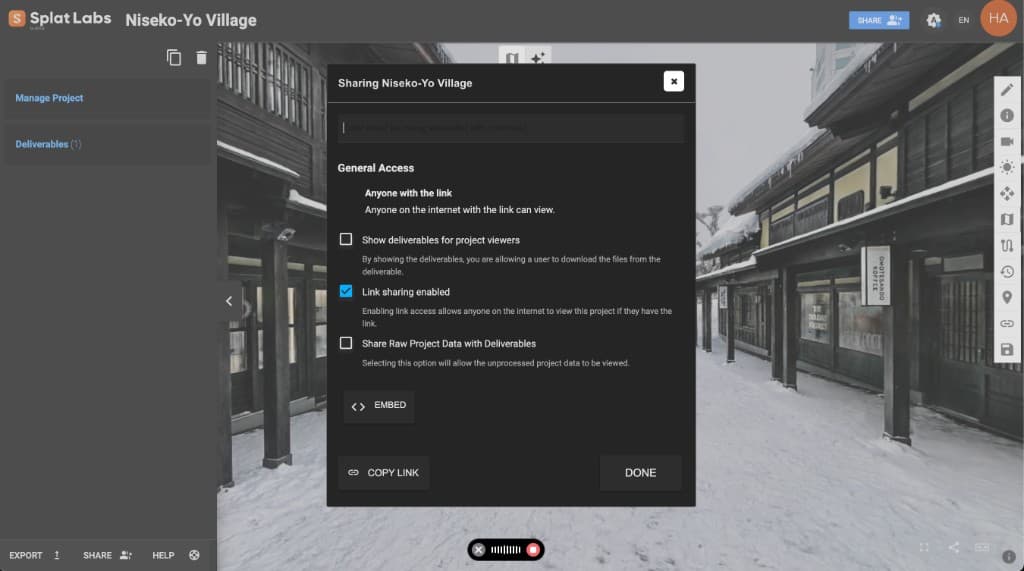
Step 2: Get Your Embed URL or Code
In the sharing dialog:
- Make sure "Link sharing enabled" is checked — this allows anyone with the link to view your project
- Click the EMBED button to expand the embed section
You will see two fields:
- Embed URL — The viewer URL to use directly or paste into platforms like Zillow, Notion, or MLS
- Embed Code — A ready-made HTML iframe snippet you can copy and paste into your website
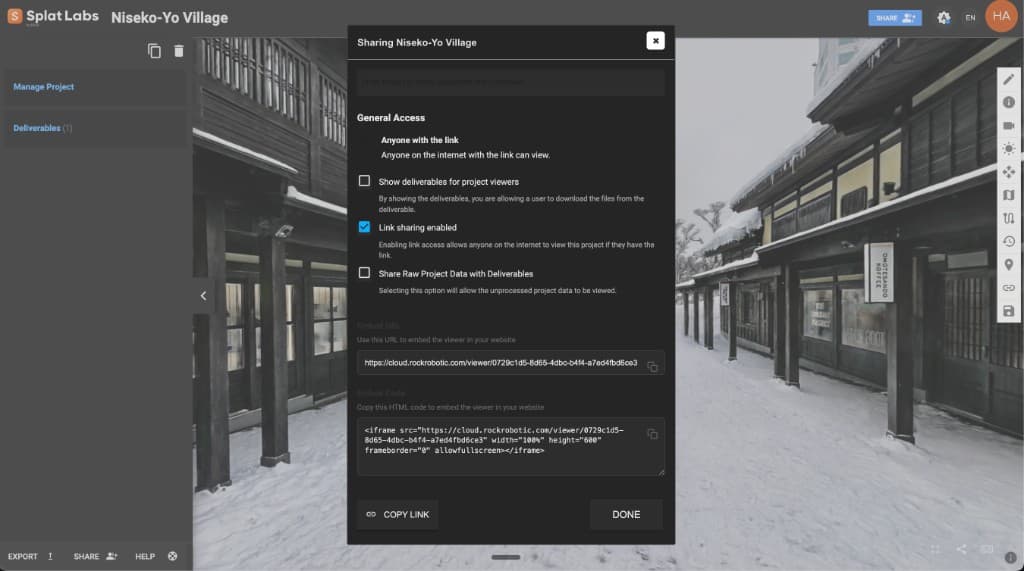
Click the copy icon next to either field to copy the value to your clipboard.
The Embed Code field gives you a complete iframe snippet — just paste it into your website's HTML. No manual coding required.
Step 3: Create the iframe
If you copied the URL (instead of using the EMBED button), wrap it in a standard HTML iframe tag:
Step 3: Paste into Your Website
Drop the iframe code into your website's HTML wherever you want the viewer to appear. That's it — your visitors can now explore the full 3D scene.
Set width="100%" so the viewer stretches to fill its container on any screen size. Adjust height to suit your layout — 500–700 pixels works well for most designs.
Live Examples
These are real Splat Labs projects embedded right here in the docs. Click and drag to orbit, scroll to zoom.
Construction Site
Embed code for this viewer:
Niseko Village — Snowy Ski Resort
Embed code for this viewer:
These embeds are free to use on your own website. Copy the embed code above and paste it into your site.
Customization Options
Responsive Embed (16:9 Aspect Ratio)
Wrap the iframe in a container to maintain a consistent aspect ratio on any screen size:
This aspect-ratio box technique is the same one used for responsive YouTube and Google Maps embeds.
Full-Width Embed
Break the viewer out of a content column and span the full browser width:
Loading Behavior
| Attribute | Behavior | Best For |
|---|---|---|
loading="eager" | Loads immediately with the page | Above-the-fold content, primary viewers |
loading="lazy" | Loads when scrolled into view | Below-the-fold, pages with multiple embeds |
Platform Guides
WordPress
Block Editor (Gutenberg):
- Click the + block inserter and search for Custom HTML
- Add the Custom HTML block to your page
- Paste the iframe embed code
- Click Preview to confirm, then publish
Classic Editor:
- Switch to the Text tab (not Visual)
- Paste the iframe code where you want it
- Switch back to Visual to preview, then publish
Page builders (Elementor, Divi, Beaver Builder):
Drop an HTML or Code block onto your page and paste the iframe code.
If the embed shows a blank space, make sure your WordPress site is served over HTTPS. Mixed-content (HTTP page loading an HTTPS iframe) is blocked by browsers.
Squarespace
- Open the page editor
- Click an insert point or Add Block
- Select Code from the block menu
- Paste the iframe embed code
- Click outside the block to save
Code Blocks with iframes require a Business plan or higher. The Personal plan only supports plain HTML and CSS — iframes will not render.
Use the Code Block, not the Embed Block. Since Splat Labs is not an oEmbed provider, the Embed Block will not recognize the URL.
Webflow
- Open the Webflow Designer
- Open the Add panel (+) on the left sidebar
- Drag an Embed element (under Components) onto the canvas
- Paste the iframe code in the code editor
- Click Save & Close
The iframe previews live on the Webflow canvas. Available on all Workspace and Site plans.
CMS Collection pages: Store the viewer URL in a CMS text field and reference it dynamically inside an Embed element using Webflow's field binding.
Wix
Wix Editor:
- Click + (Add) → Embed Code → Embed HTML
- Drag the element to your preferred position
- Click the element → Enter Code
- Select Code, paste the iframe, and click Update
Alternative — URL method:
- Add an Embed element
- Select Website Address instead of Code
- Paste the viewer URL directly
Wix iframe containers have a fixed size on the canvas. Manually resize the container for both desktop and mobile layouts in the Wix editor.
Notion
Notion does not accept raw HTML. Use the Embed block with the viewer URL instead:
- Type
/embedon a new line - Paste the viewer URL (not the iframe code):
- Click Embed link
Resize the embed by dragging the side handles.
If Notion shows a bookmark card instead of an embed, delete the bookmark and try again using the /embed command explicitly.
Zillow / MLS Listings
Zillow and MLS platforms use a Virtual Tour URL field — you paste the URL, not iframe code.
Zillow:
- Log in to your agent account → Listings dashboard
- Select the property → Edit listing
- Find the Virtual Tour URL field (below the Photos section)
- Paste the viewer URL
- Click Update
MLS (Flexmls, Matrix, Bright MLS, etc.):
Paste the viewer URL into the Virtual Tour URL field. The tour link syndicates automatically to Zillow, Trulia, Realtor.com, Redfin, and other portals.
Zillow reports that listings with 3D tours get up to 68% more views than those without.
GitHub Pages
Paste the iframe directly into your HTML or Markdown files. Jekyll's Kramdown renderer supports inline HTML in .md files.
GitHub README files (on repository pages) strip iframe tags for security. Use a linked screenshot instead — wrap an image in a link that points to your viewer URL.
README workaround — linked screenshot:
React / Next.js
Use the iframe in JSX with camelCase attribute names:
JSX differences from HTML:
| HTML | JSX |
|---|---|
frameborder | frameBorder |
allowfullscreen | allowFullScreen |
frameborder="0" | style={{ border: 'none' }} |
Responsive wrapper:
Shopify
In a page or blog post:
- Open the page in the Shopify admin
- Click the Show HTML button to switch to HTML view
- Paste the iframe code
- Switch back to visual editor and save
Custom Liquid section (Online Store 2.0):
- Go to Online Store → Themes → Customize
- Add a Custom Liquid section
- Paste the iframe code
- Save
Hugo / Astro / Other Static Site Generators
Hugo: Enable inline HTML in your config, then paste the iframe directly into Markdown files:
Astro: Paste the iframe directly into any .astro component or Markdown file — Astro supports raw HTML in Markdown by default.
Gatsby: Use the iframe in React components, same as the React / Next.js guide above.
Troubleshooting
Embed shows a blank space
The most common cause is mixed-content blocking — an HTTP page loading an HTTPS iframe (or vice versa). Splat Labs Cloud always uses HTTPS, so make sure your website does too.
Embed does not load in the editor
Some platforms (Squarespace, Wix) hide iframe content while you are logged in as an editor. View your published page in an incognito window to verify.
Embed is cut off or too small
Adjust the height attribute in your iframe code. 500–700 pixels works well for most layouts. For a responsive approach, use the aspect-ratio container technique described above.
Embed is blocked by Content Security Policy
If your website has a strict Content-Security-Policy header, add https://cloud.splatlabs.ai to your frame-src directive:
Branding & Plans
| Plan | Embed Branding |
|---|---|
| Free | Splat Labs watermark |
| Starter | Splat Labs watermark |
| Business | Reduced branding |
| Enterprise | White-label (your logo) |
See Pricing for plan details.
Next Steps
- Sharing Projects — Share links and privacy settings
- Portals — Connect multiple scenes into walkthroughs
- Read our full Embedding Tutorial on the blog for even more detail